Features
A phone on a telescope you move by hand can tell where its camera points to a fraction of a degree, and from there where the telescope points, without encoders. Zenigo builds the rest around that: what to look at tonight, how to get there, and what you saw. Without a telescope, the same app is a star finder.
Plate solving
The position comes from the stars
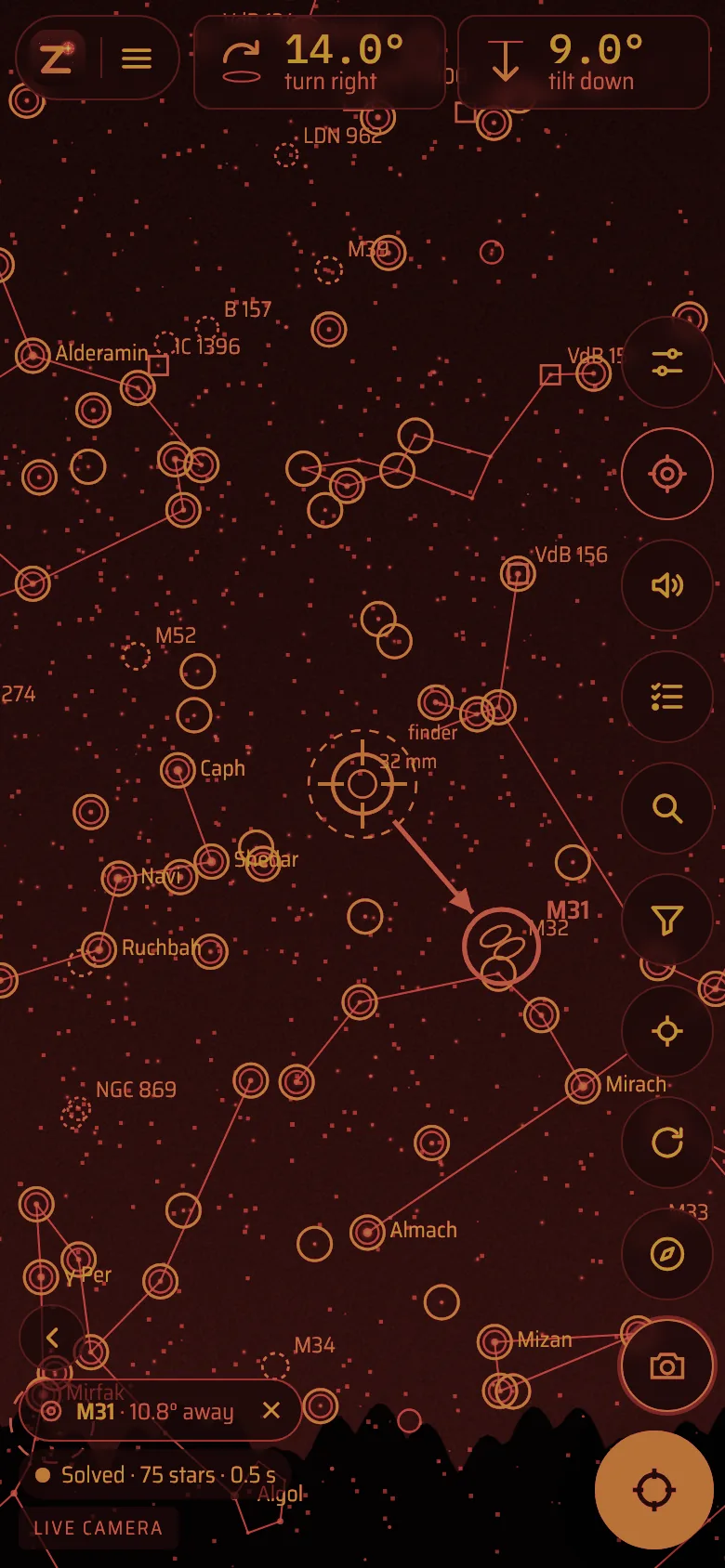
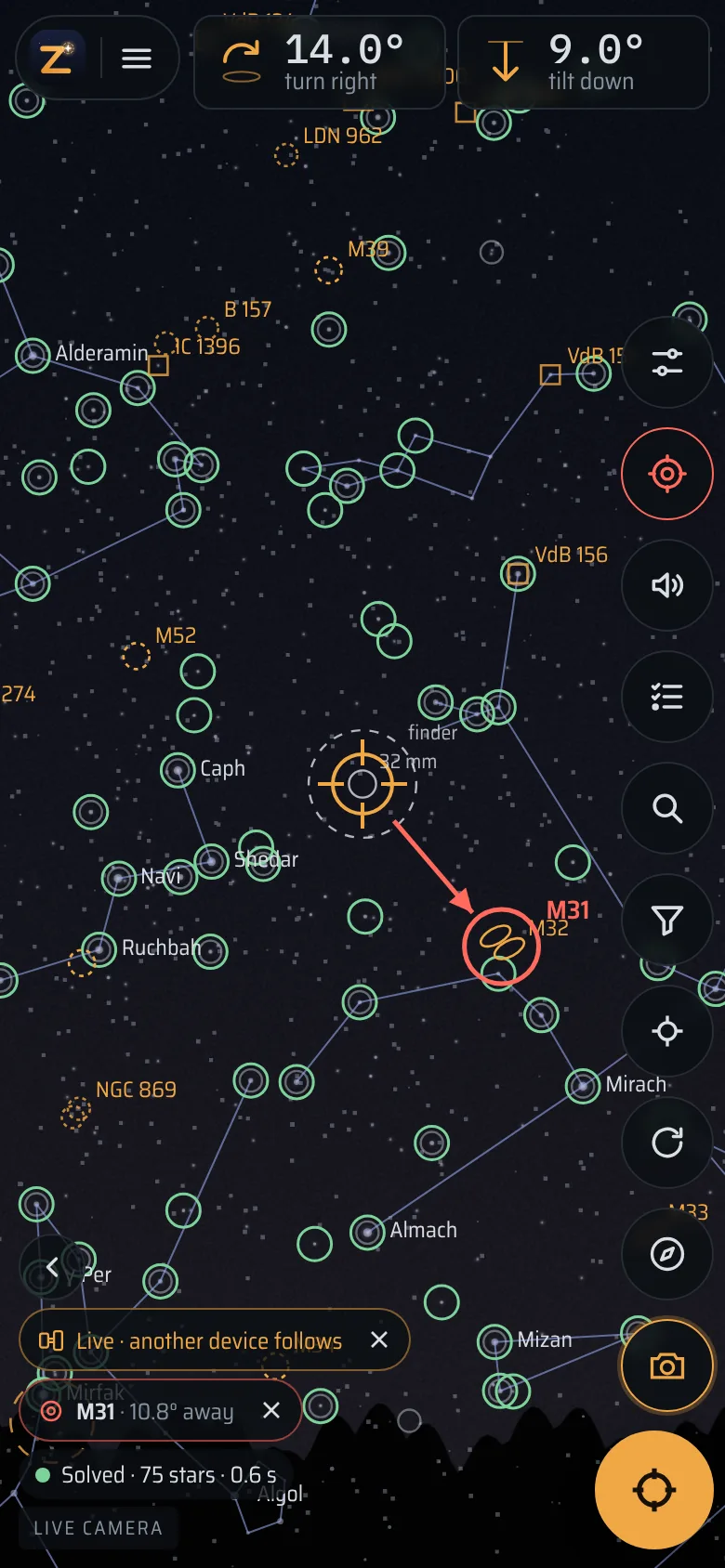
Locate averages about a second of camera frames, picks out the stars and matches their pattern against a catalogue of 5,000 stars. The result is accurate to a fraction of a degree and doesn’t care how far the compass is off next to a metal tube. Each green circle in the picture is a star it recognised.
- After the first solve, the gyroscope carries the position while you push. Continuous keeps checking it against the stars about twice a second; with the last position known, the match itself takes milliseconds.
- The phone never sits exactly parallel to the tube. Centre a star in the eyepiece, tap Locate, then tap that star on the screen: from then on the crosshair marks where the telescope points, not the camera, until the holder moves.
- For fainter stars than the video stream can show, take a night photo with the phone’s camera app. In night mode it can expose for several seconds, and Zenigo solves the photo just the same.
- The camera can also look through a 90° mirror or periscope, or be a USB webcam on the tube. Without any camera, the top edge of the phone serves as a pointer.
Push-to
Directions you can push by
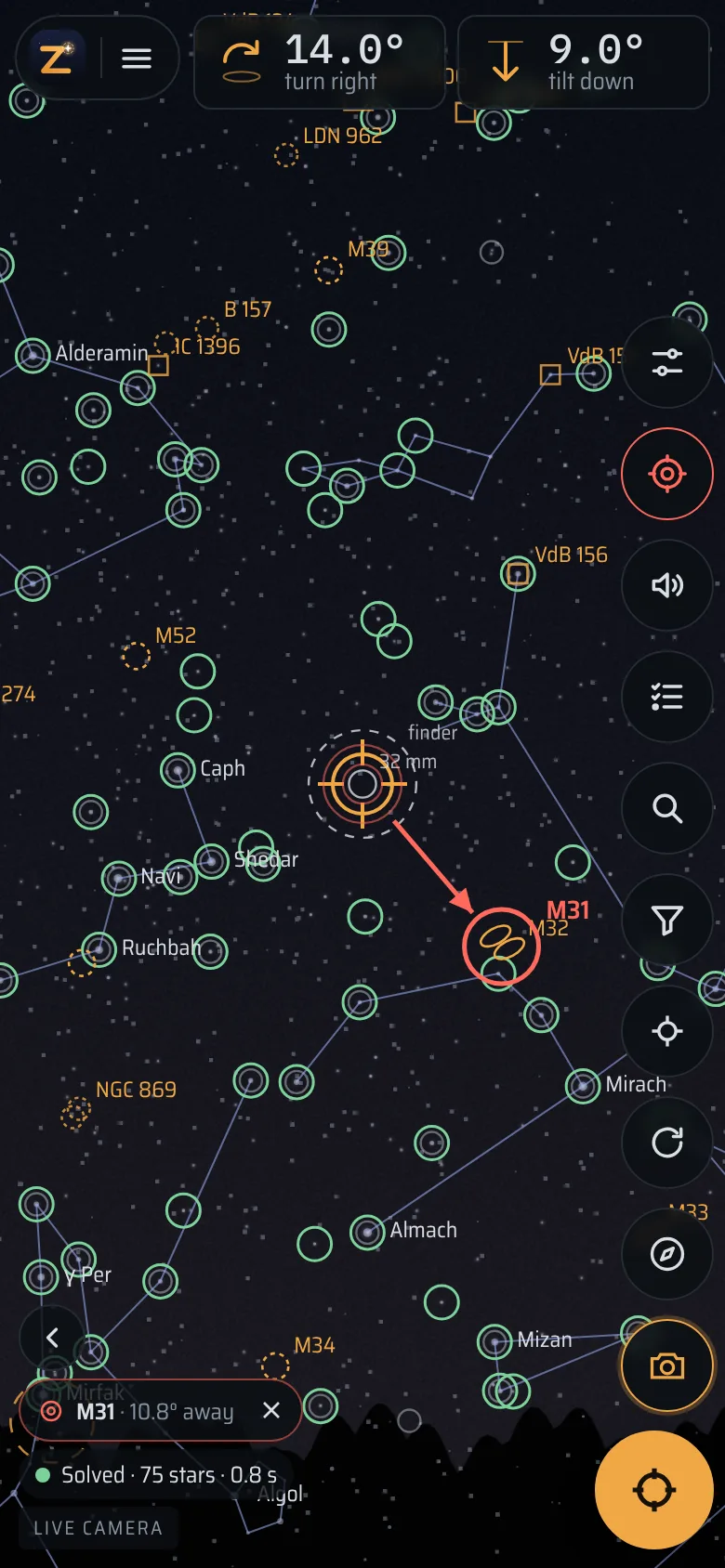
The two numbers at the top tell you how far to turn and tilt the telescope. A Dobson or any alt-az mount moves along exactly these two axes. They count down while you push, and the target pill turns green when the target is in the eyepiece.
- Rings around the crosshair show your finder and the true field of the eyepiece in use. They are calculated from the telescope and eyepieces you entered, Barlow lens included. Telrad rings are there too, if you use one.
- The round eyepiece view shows the stars down to magnitude 9 around where the telescope points, with the target, or an arrow towards it. It is turned and mirrored the way your Newtonian or star diagonal shows them, so the pattern matches what you see.
- Or don’t look at the screen at all: clicks tell you which way to turn, chirps which way to tilt, and a chord sounds when the target is in the field.
Choosing targets
Objects for your telescope, not for any telescope
Zenigo knows your aperture, your eyepieces and how low and high your mount can point. Its categories use all of that.
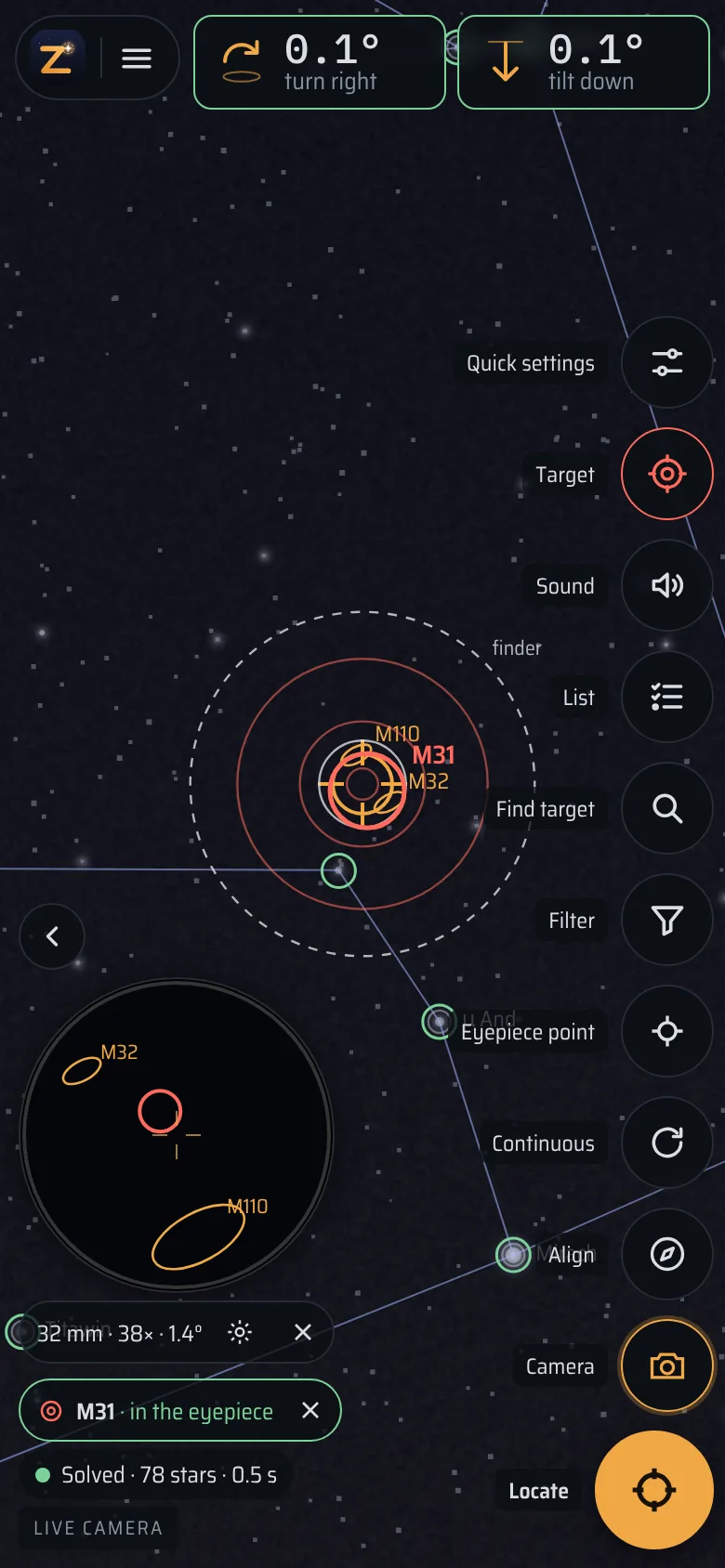
- My telescope keeps objects that are bright enough for your aperture and not far larger than the field of your widest eyepiece. For galaxies and nebulae it judges the surface brightness, which is what makes a large galaxy of magnitude 9 harder than a small one.
- Good now lists what is high enough and in reach of your mount right now, and leaves out galaxies and nebulae next to a bright Moon. In reach leaves out what never comes into your mount’s range from your site.
- Messier, Caldwell and Herschel 400 can be combined with these. There are about 2,000 deep-sky objects in total, and stars down to magnitude 9 appear as you zoom in.
Object details
Is it worth it tonight, and with which eyepiece?
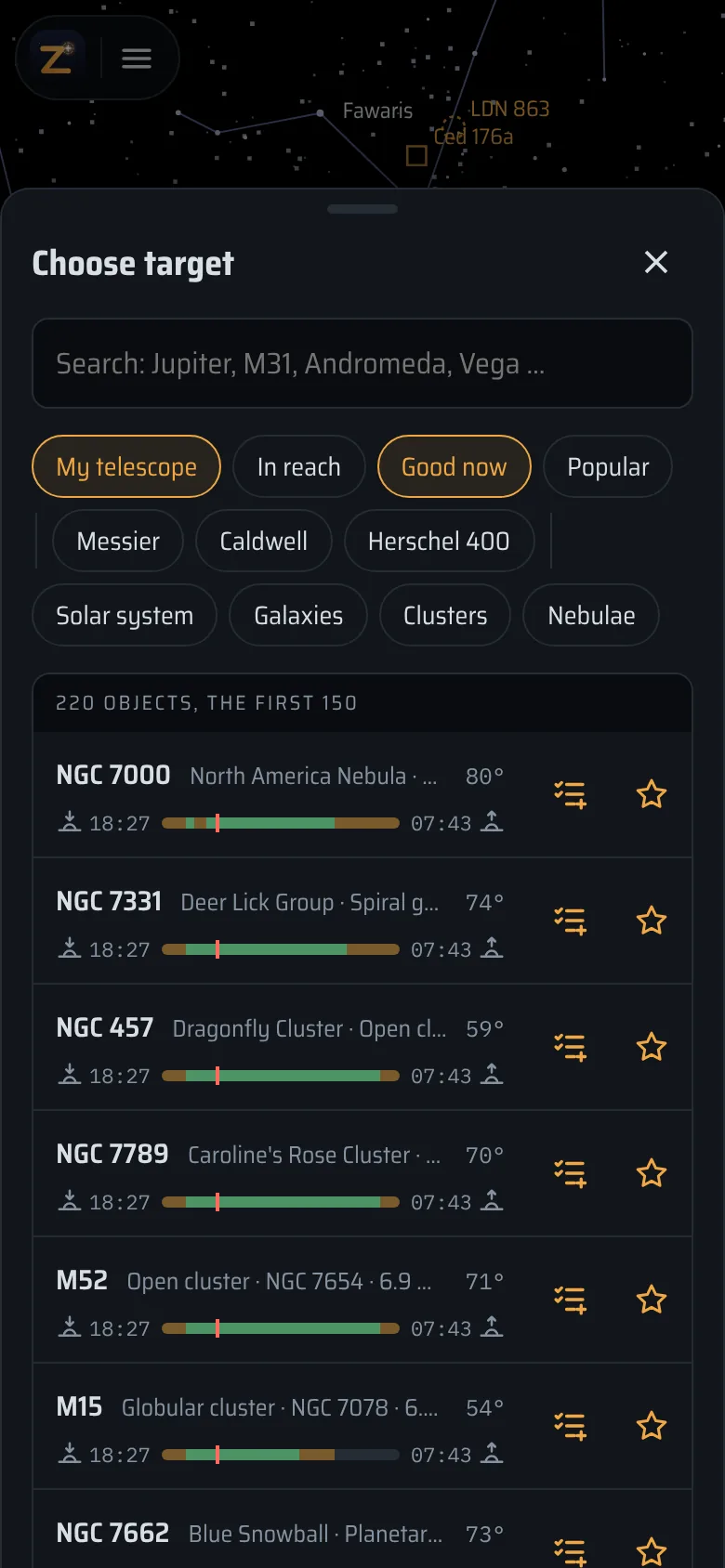
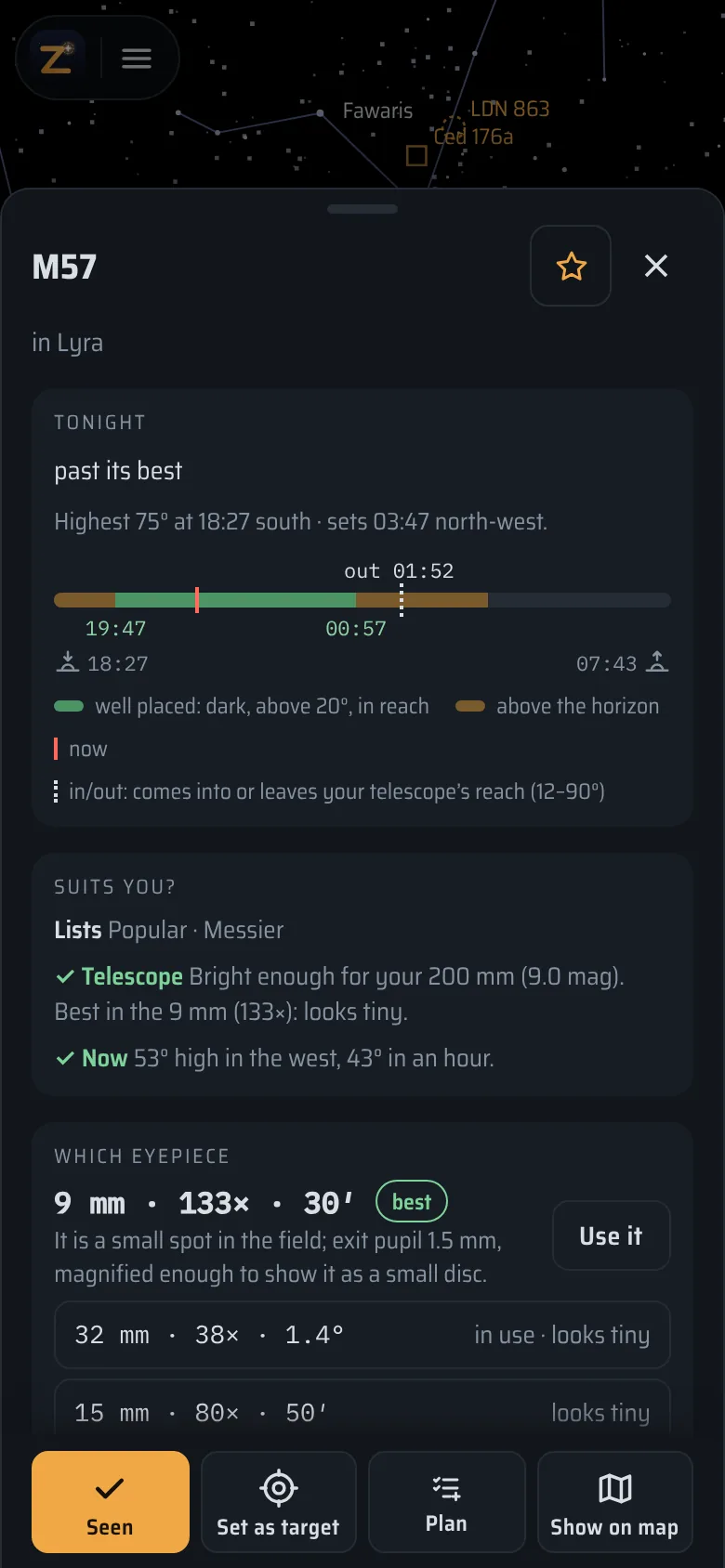
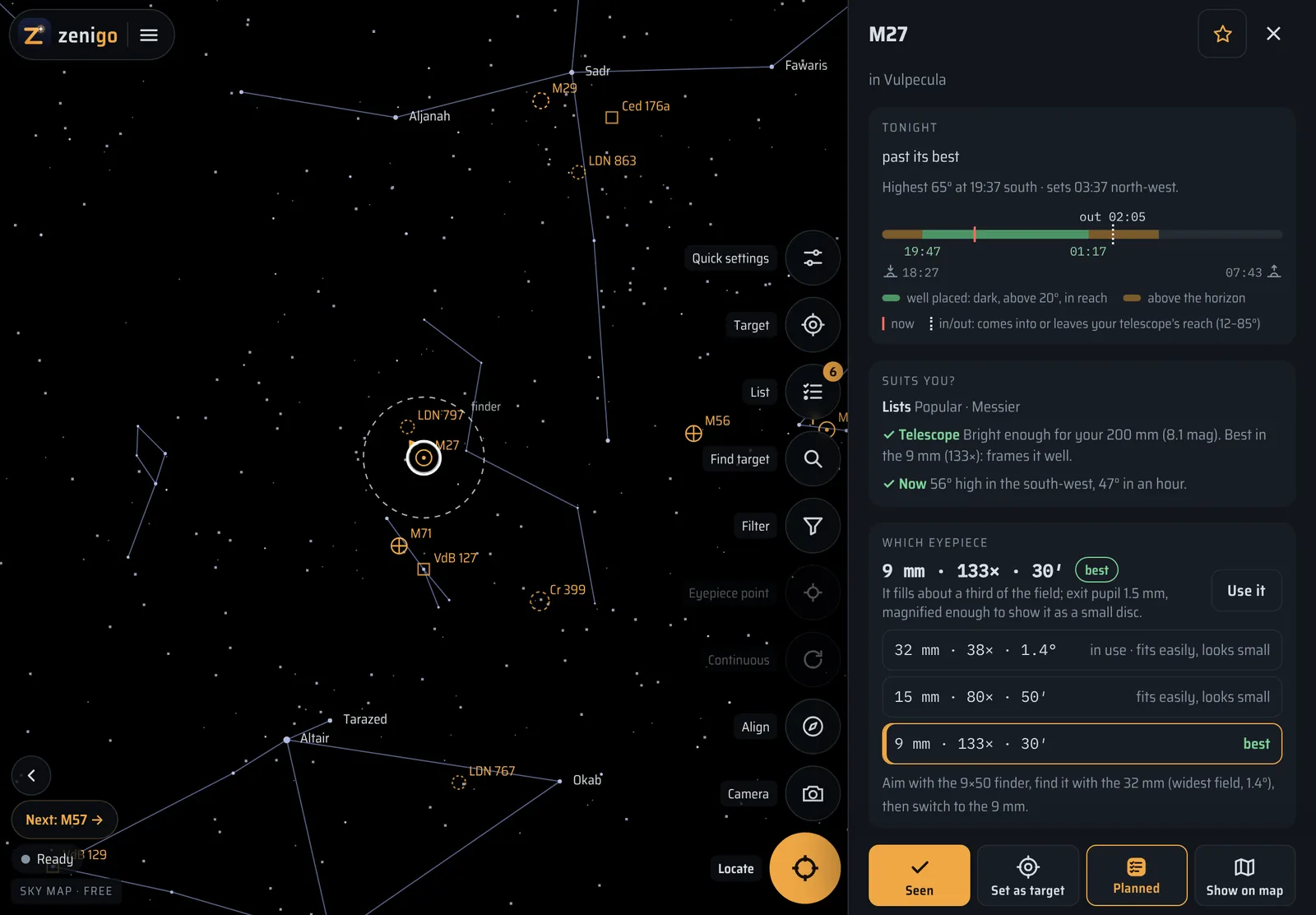
The bar runs from sunset to sunrise. It is green while the object is high, the sky is dark and your mount can reach it. Marks show when it comes into reach or leaves it.
Below the bar, Suits you? says why the object fits your telescope or not. Which eyepiece picks one of yours and explains the choice. For a galaxy that means the exit pupil, for a globular cluster the magnification, for a planet what the air usually allows.
- The Moon’s details list the craters along the terminator tonight.
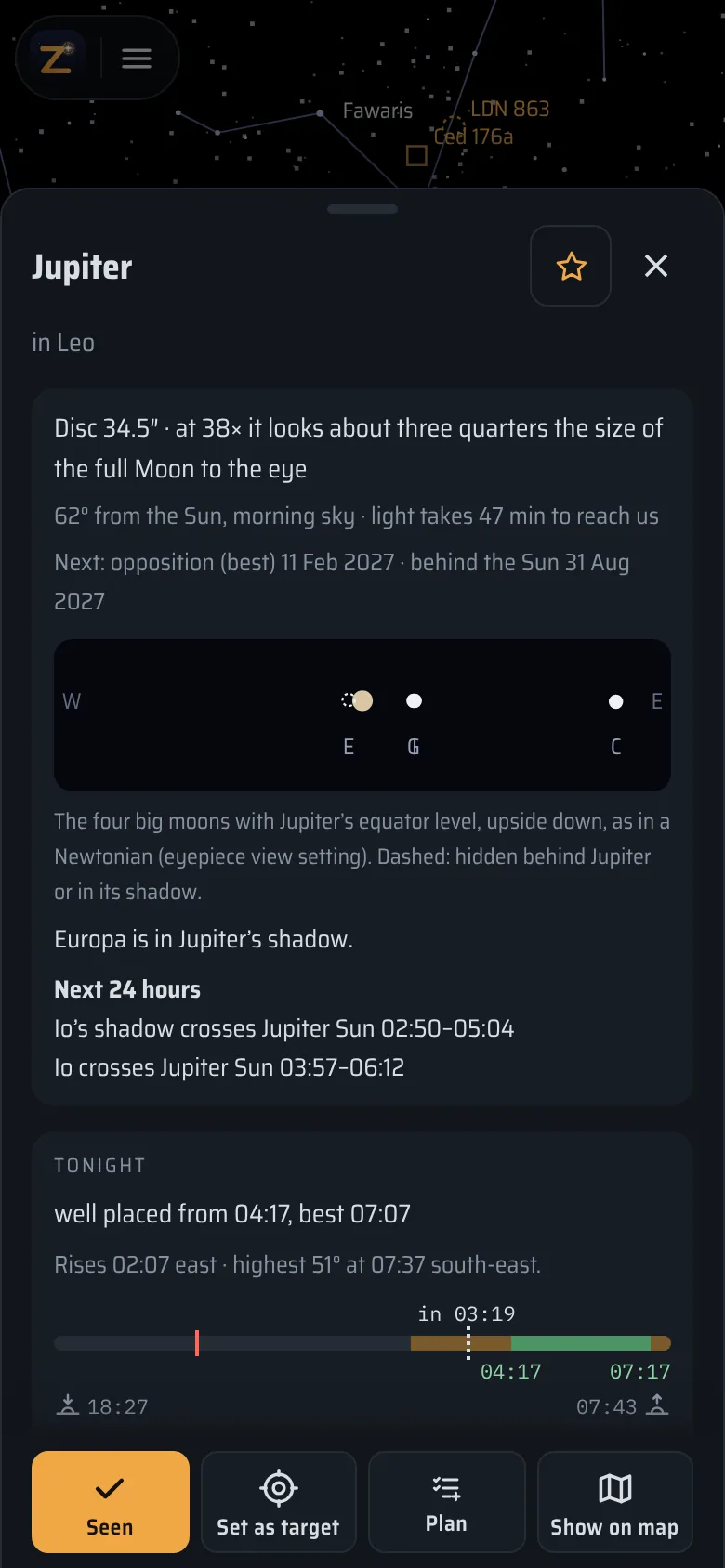
- Jupiter’s show where its four big moons are, as you see them in the eyepiece, and when a moon or its shadow crosses the disc. Saturn’s show the tilt of its rings.
Planning
Tonight, the plan and the logbook
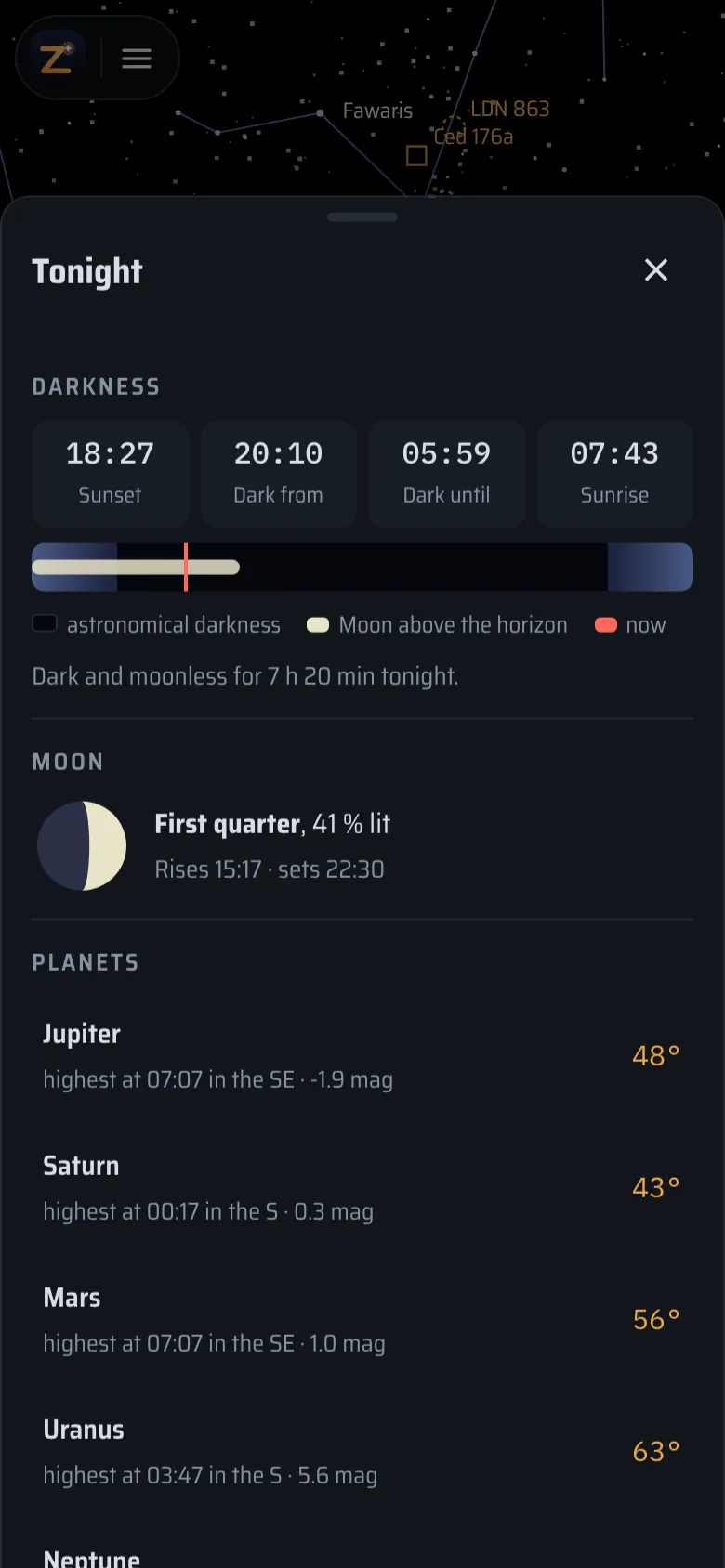
- Tonight shows when it gets dark, how long it stays dark without the Moon, which planets are up and the best deep-sky objects of the night. Coming up lists eclipses, close pairs of the Moon and planets, oppositions, and meteor showers with how much the Moon will disturb them.
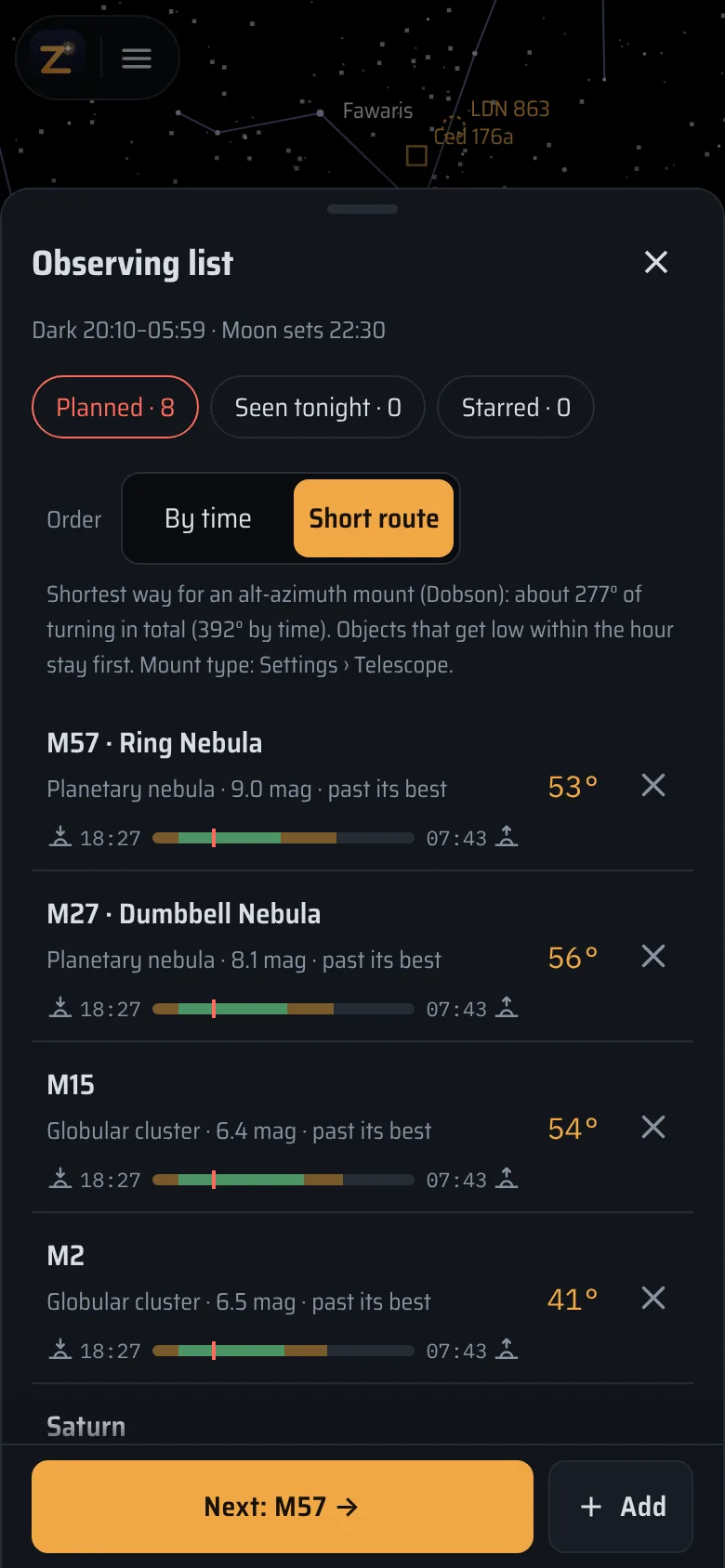
- The planned list puts first what sets first. With Short route it sorts the objects instead by the least turning for your mount, starting where the telescope points now; what gets low within the hour stays at the front. Next takes you to the next one that is well placed.
- Mark an object Seen and the logbook fills in time, eyepiece, altitude and Moon. You add seeing, transparency and a note. The logbook exports to CSV.
- Menu → Time shows the sky at any date and hour. On a tablet or computer, details, lists and settings open beside the map.
Live connection
Phone on the tube, tablet in your hand
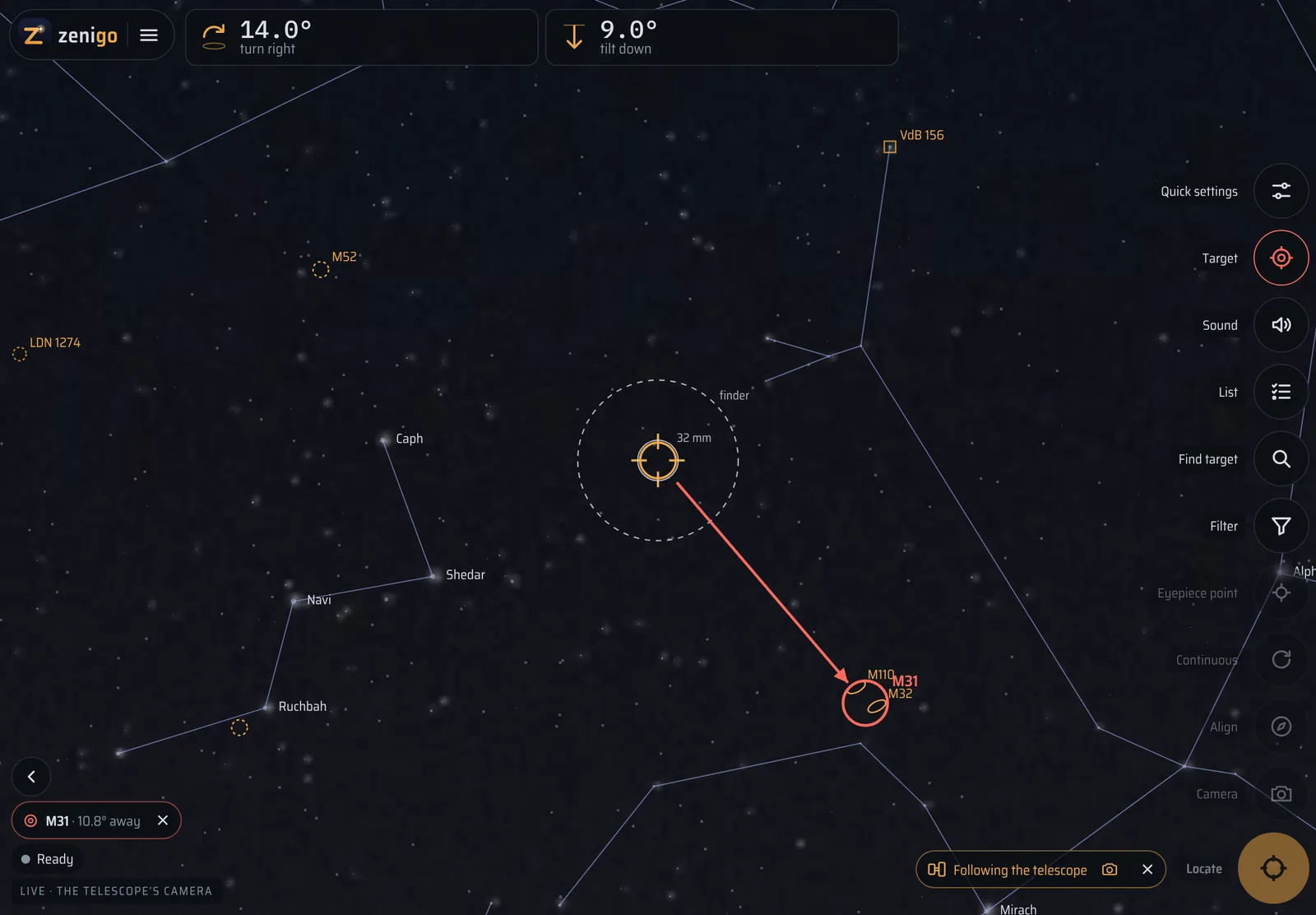
A phone in its holder near the top of the tube is hard to read. Connect a second phone or tablet and it shows where the telescope points: the crosshair, the arrow and the directions. A target you choose on either device becomes the target on both. If you like, the tablet also shows the telescope’s camera image, with the stars and rings drawn on it.
The two devices pair by scanning each other’s QR code and then talk directly over your Wi-Fi or a phone’s hotspot. No server and no internet are involved, so it works at a dark site too, as long as one of the phones can open a hotspot.
Your data
Planned on the computer, ticked off at the telescope
With sync turned on, the observing list, the logbook and the telescope settings are the same on all your devices. Everything is encrypted on the device with a key from the sync code, and the code never reaches the server. If the same logbook entry was changed on two devices before they synced, the edits are combined field by field; only a field changed on both keeps the later edit.
The settings that depend on how a phone sits on the telescope, such as the eyepiece point, stay on that phone. Without sync, nothing goes to a server. If you ever lose all your devices, the sync code is enough to get the data back, even without Zenigo: a short Python script decrypts it.
At a dark site
Red light, no signal needed
- Red light turns the whole app red, buttons and panels included, and keeps the map dark.
- Added to the home screen, Zenigo needs no signal. The star catalogue, the solver, the planning and the logbook all run on the phone. Only satellites need a connection.
- No account, no ads, no tracking.
Every button and setting is explained in the help. For your first night, follow Getting started.